Well Event - View Editor
Click on the Edit View icon  in the upper left corner to enable the Well Event View Editor.
The editor allows you to add, edit, copy move or delete a well event.
Select the green plus  to add a well event to your logs table to be displayed in the table.
Select the Move row up  /
/ down Select a row and click the arrow to change the order of columns in the table.
Select the Delete button  to delete the selected row from the display.
The View Editor allows you to change the name of the column displayed in the table.
Name Select the data (e.g., wellbore, activity code, original code, etc. ) from the drop-down list.
Display Name Select the display name for the data. The name of the data is displayed by default, but this field can be edited.
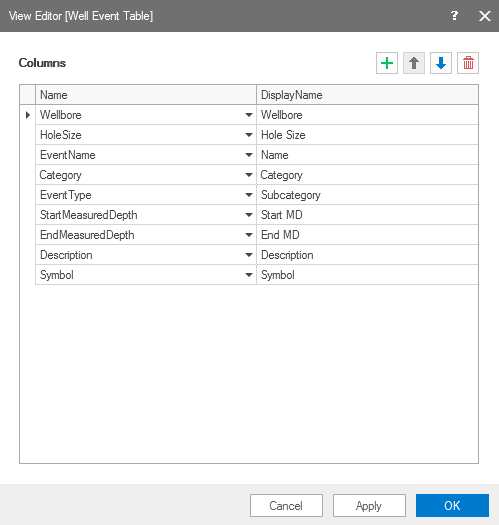
The well event table displaying names and display name. click to enlarge